Picking The Sales Orders In Opentaps
Posted By : Akash Mall | 29-Dec-2016
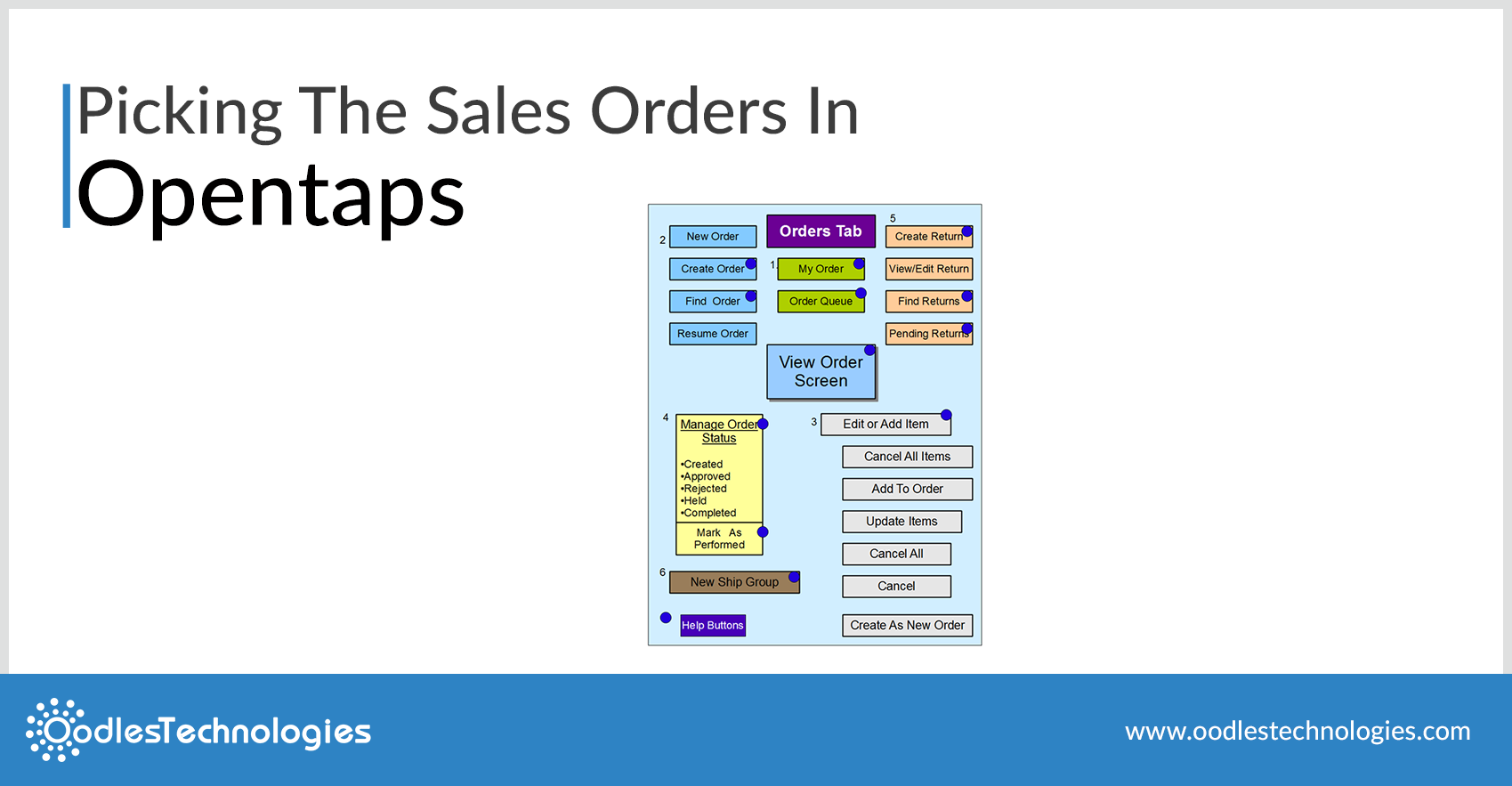
Imagine a very large company, which sell very popular products. For a given day, the same product can be hundreds or thousands of times passed to different customers. If every order, warehouse staff went to the shelf to find the product, it may be the same staff made hundreds of similar round-trip to bring the same project. This is certainly not very effective.
The selection of menus is assembled by assembling the order from multiple commands so that an employee can retrieve multiple items of the same item in a single itinerary. The items placed in the box are shipped to the packaging area to solve this problem.
The checklist is a list of reports that show the elements that are "picked up" from the warehouse or returned from the warehouse and put them in the number box (respectively). And rearranging the items according to the location in the storage item so that "Baker" is able to select the same sequence of items through the repository and the retrieval menu. The idea is to select the terms of the system order funds transfer, and then pack them, and then arrange the shipment.
How it Work in Opentaps System?
Picking the Orders for Packing begins with finding the orders which are ready to ship according to the opentaps system. The sales order which are ready to pack are defined as follows:
-
Orders that are approved by the user,
-
Which has at least one item in stock if items can be shipped separately, or
-
Those have all the items are in stock if the materials that will be shipped together.
To create picklist before packing, there are two ways:-
i). Create Picklist
Through this method, we can generate new Picklists for orders ready to ship. In order to facilitate the shipping of a particular type of packaging orders, which lists a number of types of shipment orders ready.

* From “Create Picklist” screen, on clicking create Picklist Button or create and print Button it create picklist. In a single line of Create-picklist, it can have more than one Order in the same line of same shipment method.
* User can check list of the orders, by clicking any “Shipment Method” that are list of orders included in that shipment method of that Group.
* We can create only one picklist at a time by editing “Pick First” textbox Value with 1.
* Now click on the Create Picklist Button, this will create an picklist of the order. Now, we have to pick the products first then after picking the products, we can change it’s status to Picked.
* After creating, this will send to the picklist Details Page.
ii). Open Picklist
The screen shows it as an open list of processing options (list of options), ID checking, date of inspection, number of applications in the list, current status of the list, and shipping order in this list.

-
When we click on any Picklist Id, the Picklist Detail will open.
-
After creating the picklist this will redirect to the picklist Details Page, where it’s status would be input. When the user picked all the Products then user can change their status i.e Assigned, printed, picked, completed and cancel accordingly as per picking session execute.
-
After finishing the above steps, to pick an order Products. The Picklist is ready to pack,So the picklist is now available in “Picklist To be Packed” screen. From here User can pack the picklist, on clicking to Pack Order, the picklist order is moved in pack order Screen where packing of the Order Begin.


Cookies are important to the proper functioning of a site. To improve your experience, we use cookies to remember log-in details and provide secure log-in, collect statistics to optimize site functionality, and deliver content tailored to your interests. Click Agree and Proceed to accept cookies and go directly to the site or click on View Cookie Settings to see detailed descriptions of the types of cookies and choose whether to accept certain cookies while on the site.















About Author
Akash Mall
With years of industry experience, Akash is an accomplished Enterprise Solutions Architect, adept in utilizing cutting-edge technologies such as Angular, Java/SpringBoot, Odoo, ERPNext, Groovy, Apache OFBiz, and Maven. Leading a team, Akash is dedicated to delivering top-notch enterprise solutions to clients worldwide. He possesses exceptional proficiency in handling the technical intricacies of ERP applications and has played a crucial role in successfully executing numerous large-scale ERP projects. Skulocity, Moov Logistics, and Captionlabs stand as prominent examples of the significant projects he has previously delivered.