SSH connection to linux server from Android device
Posted By : Kamaldeep Singh | 09-Jan-2017
Hi, developers. Hope you are doing well!! But think about a situation in which you are not in reach of your computer and unfortunately you get a phone call informing server issues. Suppose if everything gets down on a live server machine and you don't have a laptop with you to have an SSH. Well, the solution to the above problem is now available. All you need is an Android phone and install the app named "JuiceSSH - SSH Client". The app is build by "Sonelli Ltd". Click here to download
In this tutorial, I will guide you how you can build up an SSH connection to your remote Linux server using the pem file. Make sure that your server accepts public logins instead of just the whitelisted IP or you can only access via a whitelisted IP connection. In order to set up a new SSH connection you will need the following details from your server:
- Public address
- SSH Port (22 by default)
- Username
- Private Key or Password
- A working internet connection
Step 1: Install the Juice SSH on your Android device by clicking here
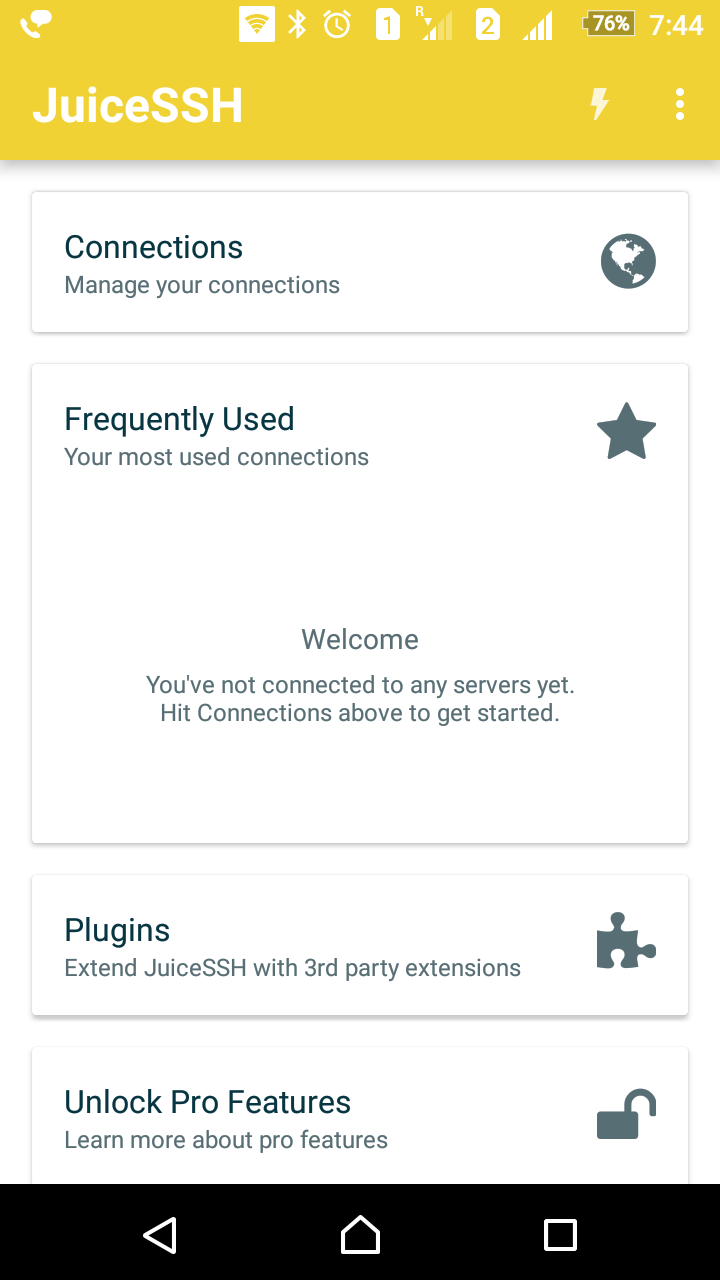
Step 2: Open the app and click on Connections at the top
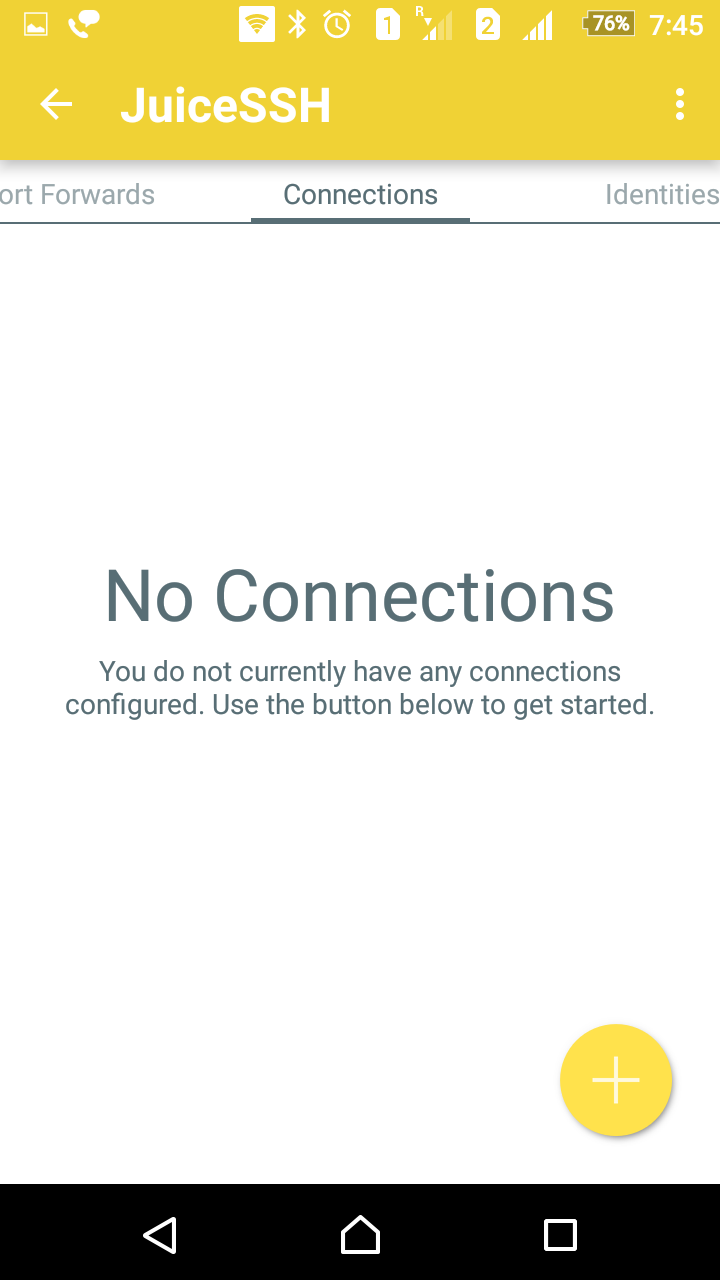
Step 3: Click on the plus icon on the bottom right and then provide the server details starting with providing the nickname to this connection.
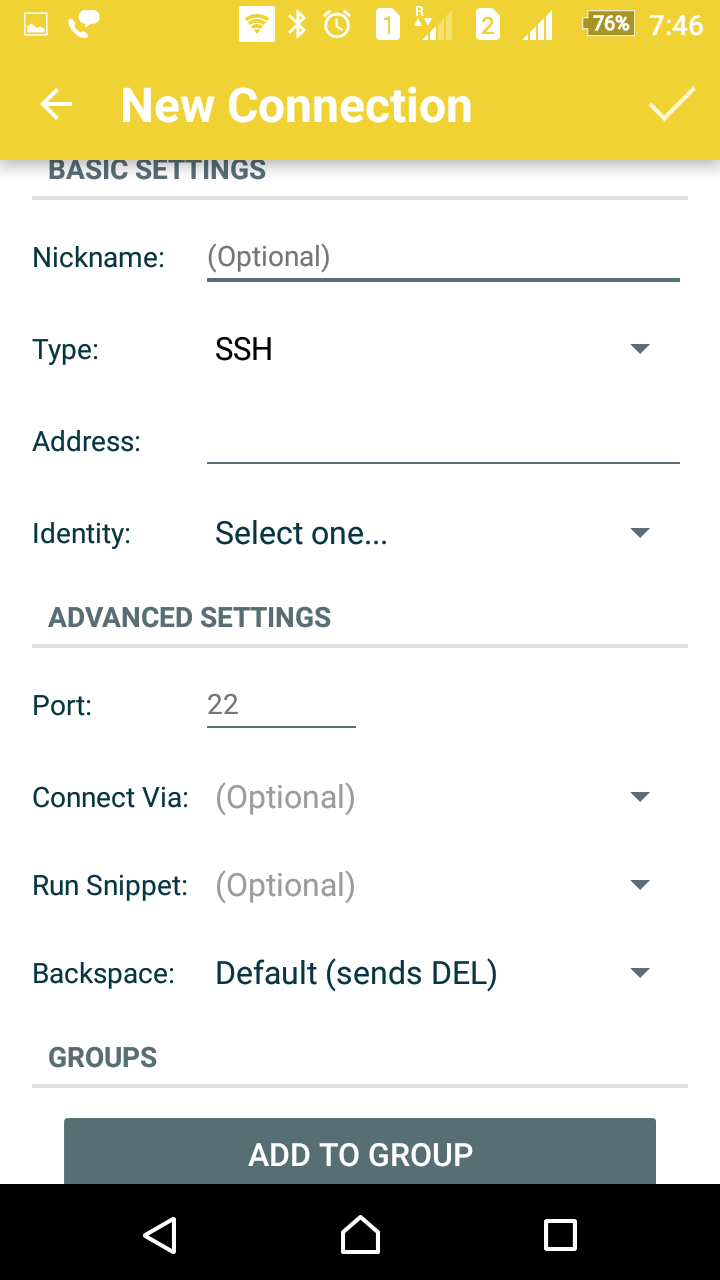
For this example we'll assume that your server's address is myserver.example.com, the SSH service is running on port 92, your username is testuser and your private key file has been copied to the SD-Card of your Android device. With these assumptions, the data will be filled in the following way:
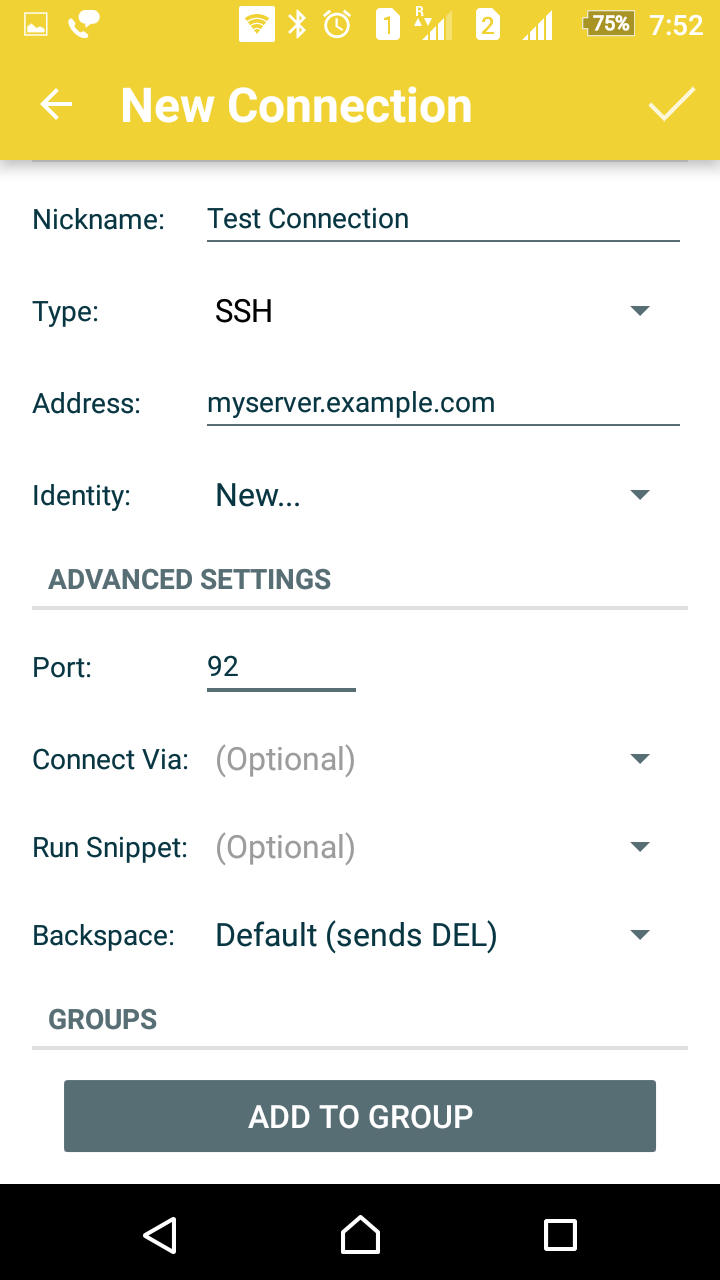
Step 4: To provide the username and the pem file/password details, click on Identity and select new and define the new identity. Identities contain authentication details and can be reused for multiple connections.
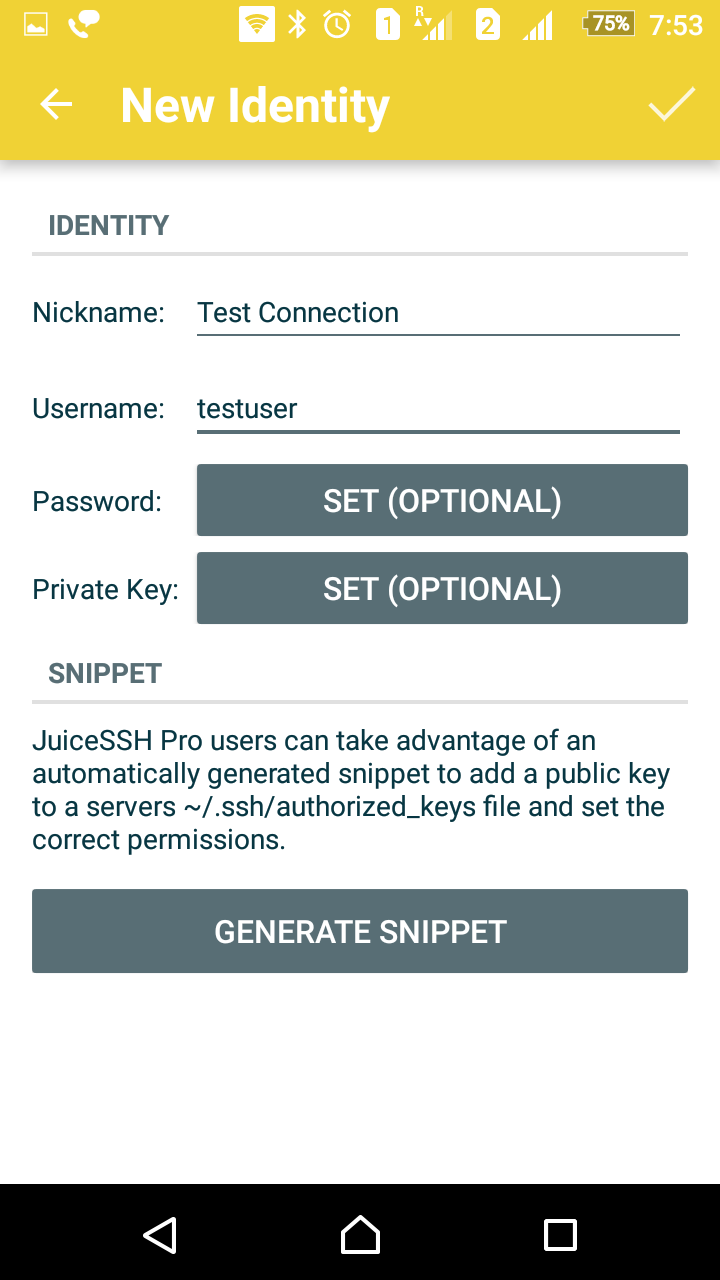
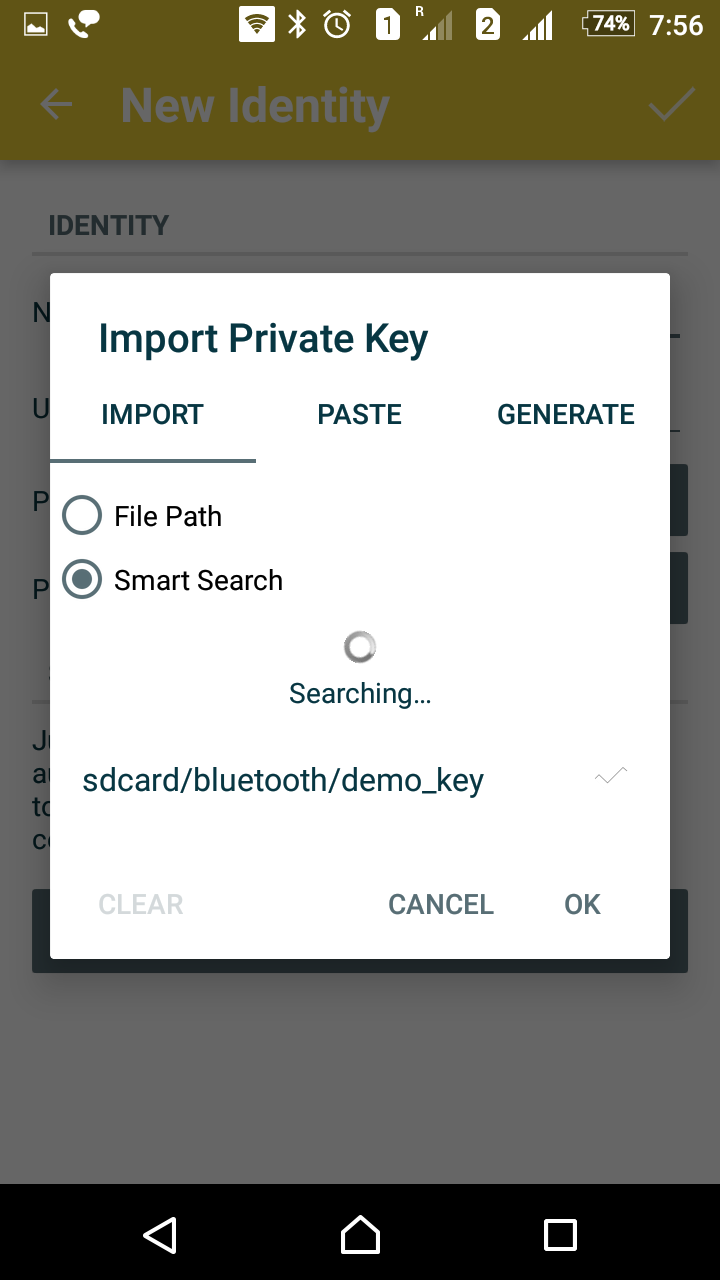
Step 5: To provide the password to the user click on "Password" or to provide the Pem file click on "Private Key". In this example, I have set the private key. To import the private key, click on "Smart Search". The interface will automatically search the pem file from your mobile storage. Select the file and click OK.
After you have successfully set the private key, you will see the following screen
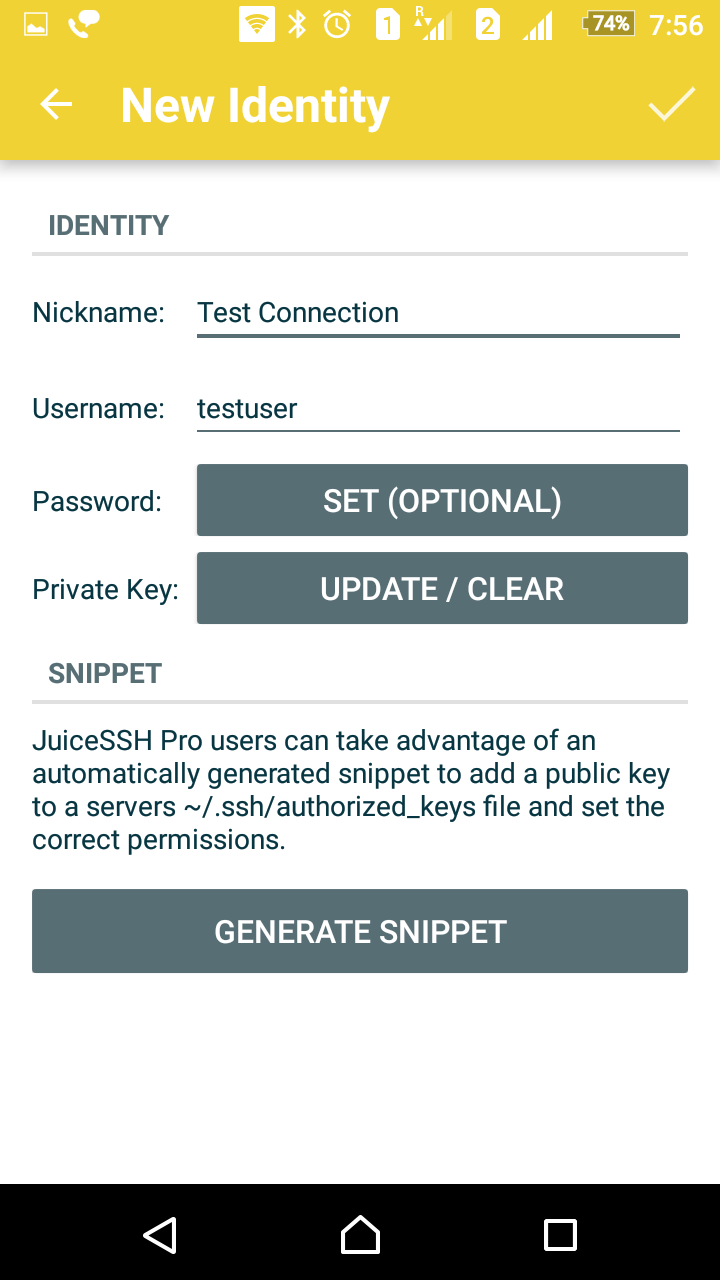
Close the window by clicking on the tick icon on the top right of your screen.
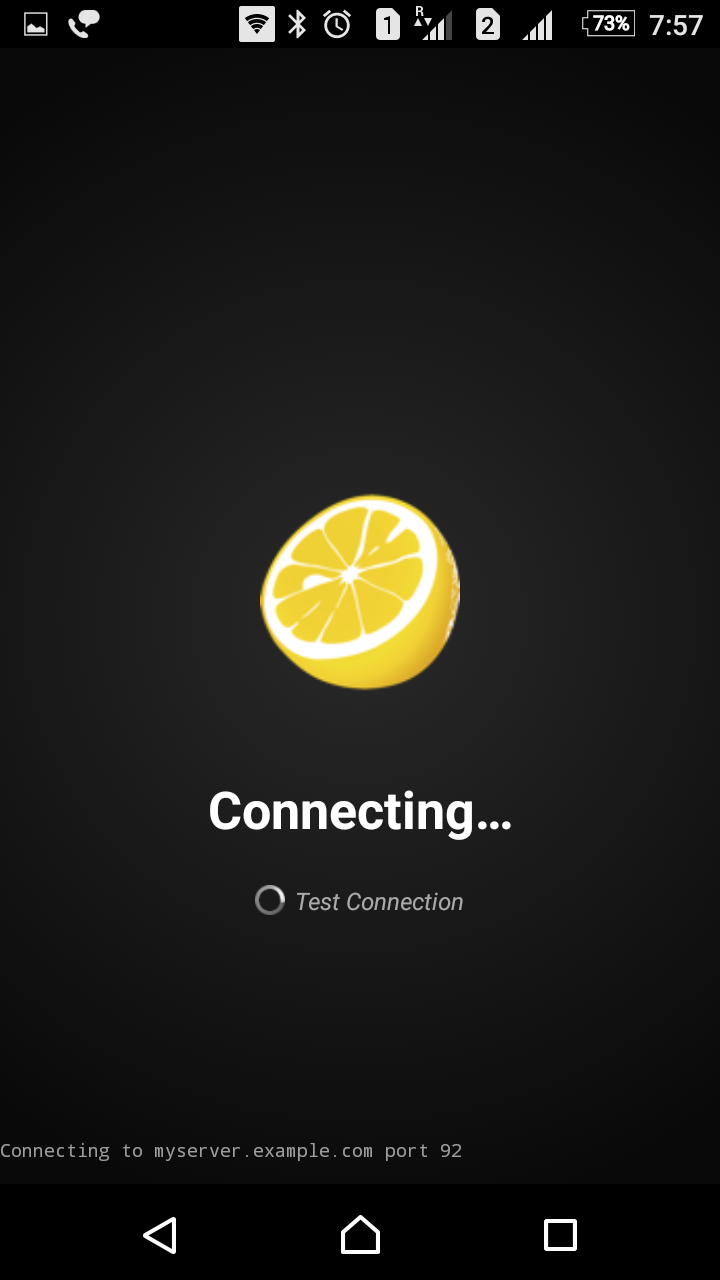
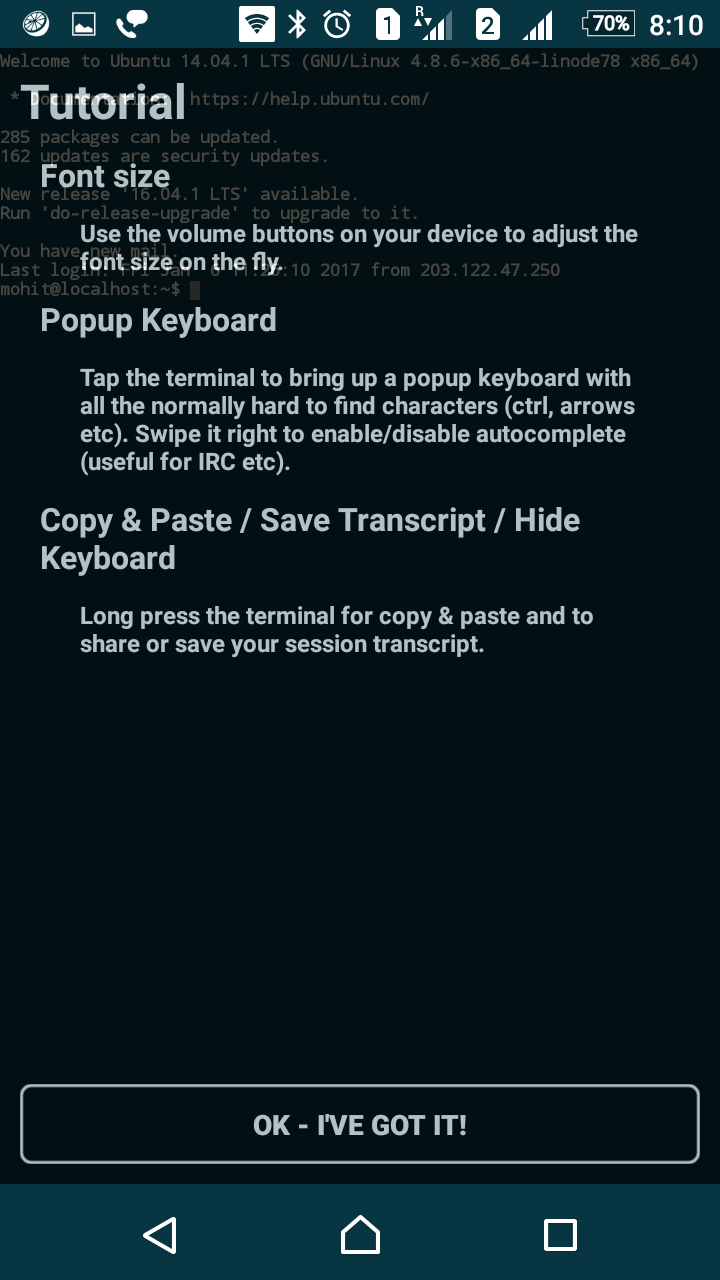
Step 6: After following the above steps, you will see a new connection created under the connections tab. Select the connection to establish the connection to the server.
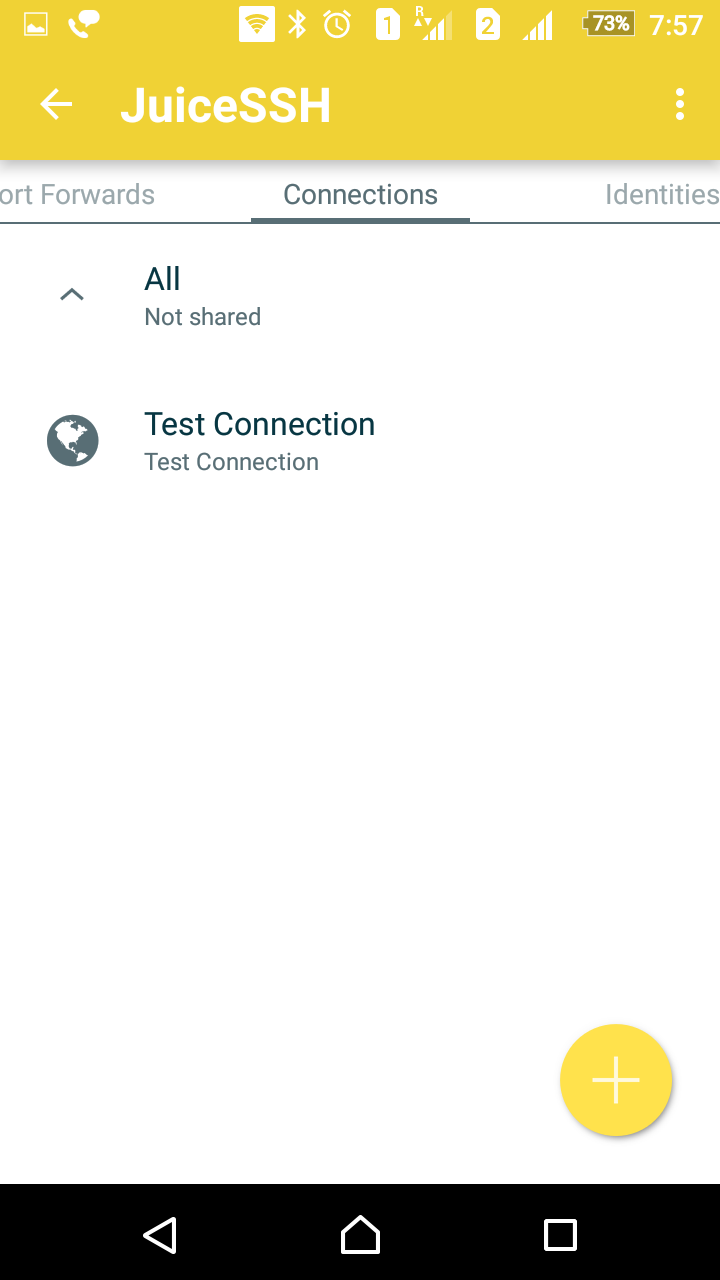
A connection window will open showing you the progress of connection.
That's all for now. In my next blog, I will share how you can see monitor the server performance via SSH on Android.
Thanks


Cookies are important to the proper functioning of a site. To improve your experience, we use cookies to remember log-in details and provide secure log-in, collect statistics to optimize site functionality, and deliver content tailored to your interests. Click Agree and Proceed to accept cookies and go directly to the site or click on View Cookie Settings to see detailed descriptions of the types of cookies and choose whether to accept certain cookies while on the site.















About Author
Kamaldeep Singh
Kamaldeep is a highly skilled Backend Developer specializing in Java, specifically the Spring framework. He also has extensive knowledge of Javascript and associated frameworks such as Node.js and Express. He possesses a deep understanding of the latest technologies and has hands-on experience with Core Java, Spring Boot, Hibernate, Apache Kafka messaging queue, Redis, as well as both relational databases like MySQL and PostgreSQL and non-relational databases like MongoDB. He has made significant contributions to various projects, including Viral Nation, ExamWorks, TNIBRO, Biogas engineering, SecureNow - Web Application, FB Messenger Chatbot, Dialogflow Chatbot, and Catalyst. Kamaldeep's expertise allows him to seamlessly integrate different technologies into applications, highlighting his adaptability and innovative mindset. His practical experience and strong technical skills make him an invaluable asset to any team.