Refine Your Fire TV Streaming With Kodi
Posted By : Anirudh Bhardwaj | 14-Jul-2016
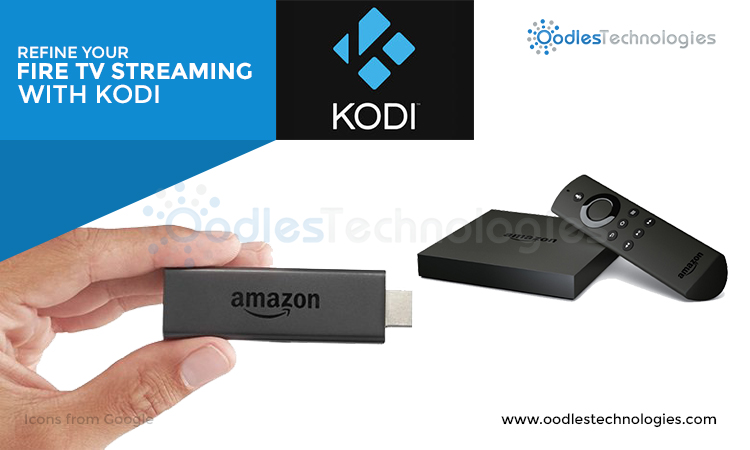
Amazon has carved its niche in the transpiring domain of Live Video Streaming with the launch of its Second Gen digital media player and microconsole called Amazon Fire TV. The first generation of Fire TV was unveiled in April 2014 and it was initially available to US citizens only. Soon after, Amazon came up with the second generation of this tiny entertainment device with enhanced processing power and 4K UHD support.
Despite of its small size, Fire TV brings more than 4000 TV channels, games, apps and much more directly to your dedicated TV set. With its Netflix integration, you can watch over 250,000 movies and TV shows with no additional charges. Fire TV comes in two variants:
-
A small set-top box like the one offered by Roku and Apple TV
-
A tiny portable USB stick called Fire TV stick
While both variants are compatible for 1080p videos, the Fire TV box also supports 4K Ultra HD. However, in order to effectively play 1080p videos in Amazon Fire TV, first you need to install a media player application called Kodi. Through this blog post, we’re going to teach you how to install Kodi on your Fire TV in few simple steps. So before going further, let’s start with a brief intro to Kodi.
What Is Kodi & How It Helps?
Kodi, formerly known as Xbox Media Center is an open-source media player application that was developed by XBMC foundation in 2004. Kodi is available on popular operating systems like Android, iOS, Windows, Mac OS X, Apple TV OS and Linux in 75+ languages.
The Kodi application was initially developed for the first generation Xbox game console but it later served as a native media center application for different operating systems. Kodi provides you an easy way to stream real-time media at an incredibly high resolution without any lag or delay.
How To Install Kodi
It’s quite easy to install Kodi on your Amazon Fire TV and it can be done in two ways, via ABD or using ES File Explorer. In this tutorial, we’re going to teach you how to install Kodi via ABD using a computer or Mac.
In order to install Kodi on your Fire TV, follow these simple steps:
-
Switch to the home screen of your Amazon Fire TV and go to settings.
-
This will open a new tab with different options. Go to System and select Developer Options.
-
Turn on, ADB Debugging and allow Apps From Unknown Sources option.
-
When you’re done with that, go back to System > About > Network.
-
Doing this will show the IP Address of your Fire TV on screen. Note down the IP address and proceed further.
-
After all this, open up a web browser (Chrome recommended) on your computer or Mac and visit a website, jocala.com.
-
Scroll down and download the latest version of ADB Fire compatible for your OS.
-
After downloading the ADB, visit a url, kodi.tv.
-
Go to downloads. Choose the latest android ARM version of Kodi and download the apk file.
-
Install both applications in your windows or Mac OS.
-
While installing ADB fire, enter the IP address of your Fire TV and click on connect button.
-
Click on Install APK button. Browse through the location of your downloaded Kodi apk file, select it and then click on Yes.
-
It will automatically initiate the installation process and click on OK when it’s done.
-
Go back to your Fire TV settings window.
-
Follow these simple steps, Go to Settings > Applications > Manage All Installed Applications and select Kodi from the list, launch the Kodi media player and that’s it! You’re good to go!
That’s all for now. Hope the tutorial helps you install the Kodi application on your Amazon Fire TV. Meanwhile, if you have some further queries, feel free to ask. Happy Streaming!


Cookies are important to the proper functioning of a site. To improve your experience, we use cookies to remember log-in details and provide secure log-in, collect statistics to optimize site functionality, and deliver content tailored to your interests. Click Agree and Proceed to accept cookies and go directly to the site or click on View Cookie Settings to see detailed descriptions of the types of cookies and choose whether to accept certain cookies while on the site.















About Author
Anirudh Bhardwaj
Anirudh is a Content Strategist and Marketing Specialist who possess strong analytical skills and problem solving capabilities to tackle complex project tasks. Having considerable experience in the technology industry, he produces and proofreads insightful content on next-gen technologies like AI, blockchain, ERP, big data, IoT, and immersive AR/VR technologies. In addition to formulating content strategies for successful project execution, he has got ample experience in handling WordPress/PHP-based projects (delivering from scratch with UI/UX design, content, SEO, and quality assurance). Anirudh is proficient at using popular website tools like GTmetrix, Pagespeed Insights, ahrefs, GA3/GA4, Google Search Console, ChatGPT, Jira, Trello, Postman (API testing), and many more. Talking about the professional experience, he has worked on a range of projects including Wethio Blockchain, BlocEdu, NowCast, IT Savanna, Canine Concepts UK, and more.