How To Pair The Remote App With Your Amazon Fire TV
Posted By : Anirudh Bhardwaj | 23-Nov-2017
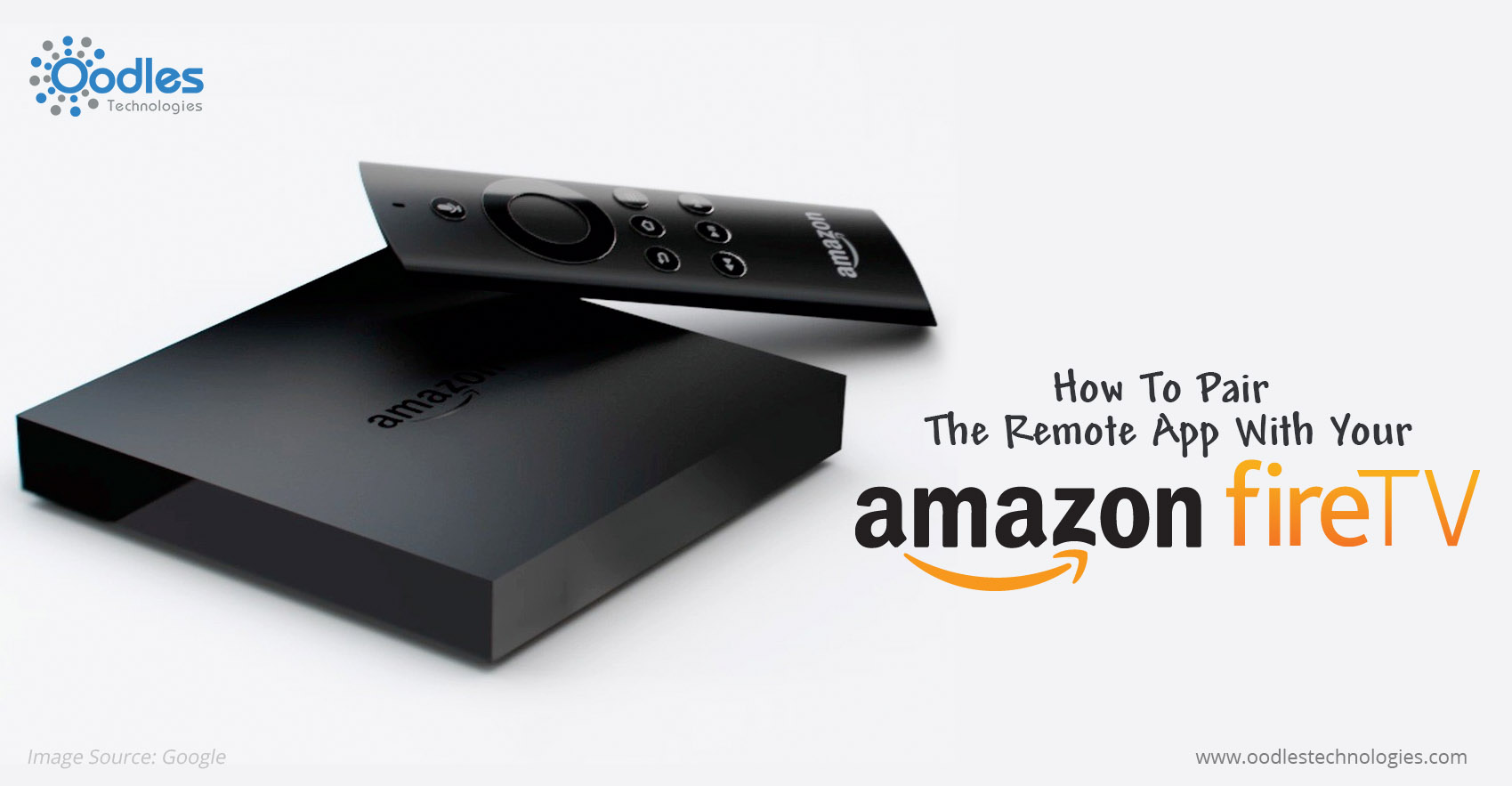
The remote app for Amazon Fire TV lets you control your TV in the same way you do through the physical remote. Using this App, you can turn your smartphone into a remote and use it to navigate through different channels, watch movies, listen music and much more. All you need to do is download and install the Fire TV remote app on your smartphone and pair it with your Amazon Fire TV which is as easy as it could ever be. In this blog you’ll know how to do that. So let’s get started!
Support & Compatibility
The Fire TV remote app is available for the following devices.
-
Fire Phones
-
Fire Tablets (with Microphones)
-
Android devices (with OS 4.0 or later)
-
iOS devices (with iOS 7 or later)
You may also like How To Use Second Screen On Your Amazon Fire TV.
On any of these devices, download and install the Fire TV Remote app. Go to your preferred App Store, search for the “Amazon Fire TV Remote App” and follow the on-screen instructions to complete the installation process. You can download the app from the following App stores on different devices.
-
Amazon App Store
-
Google Playstore and
-
Apple App Store
How To Pair?
Once you have successfully installed the Remote App on your mobile device, you can easily start using it as a remote to your Fire TV enabled television set by pairing it with your TV. To learn how to pair, follow these simple steps.
-
Connect your mobile device to the local WiFi network. It would be better if both your mobile and Amazon Fire TV are connected to the same WiFi network.
-
Launch the Remote app on your Smartphone, select your Fire TV device. Follow the on-screen instructions.
-
Enter the code displayed on the TV screen when the app prompts to do so and complete the pairing.
That’s how it’s done! However, once you have paired a phone with your Amazon Fire TV, it can’t be unpaired and will be available in the list of paired device. The only way to remove the paired devices is to factory reset your Amazon Fire TV which would remove all the paired remotes and controllers.


Cookies are important to the proper functioning of a site. To improve your experience, we use cookies to remember log-in details and provide secure log-in, collect statistics to optimize site functionality, and deliver content tailored to your interests. Click Agree and Proceed to accept cookies and go directly to the site or click on View Cookie Settings to see detailed descriptions of the types of cookies and choose whether to accept certain cookies while on the site.















About Author
Anirudh Bhardwaj
Anirudh is a Content Strategist and Marketing Specialist who possess strong analytical skills and problem solving capabilities to tackle complex project tasks. Having considerable experience in the technology industry, he produces and proofreads insightful content on next-gen technologies like AI, blockchain, ERP, big data, IoT, and immersive AR/VR technologies. In addition to formulating content strategies for successful project execution, he has got ample experience in handling WordPress/PHP-based projects (delivering from scratch with UI/UX design, content, SEO, and quality assurance). Anirudh is proficient at using popular website tools like GTmetrix, Pagespeed Insights, ahrefs, GA3/GA4, Google Search Console, ChatGPT, Jira, Trello, Postman (API testing), and many more. Talking about the professional experience, he has worked on a range of projects including Wethio Blockchain, BlocEdu, NowCast, IT Savanna, Canine Concepts UK, and more.