Amazon Releases New Software Update For Fire TV Stick
Posted By : Anirudh Bhardwaj | 19-Jul-2017
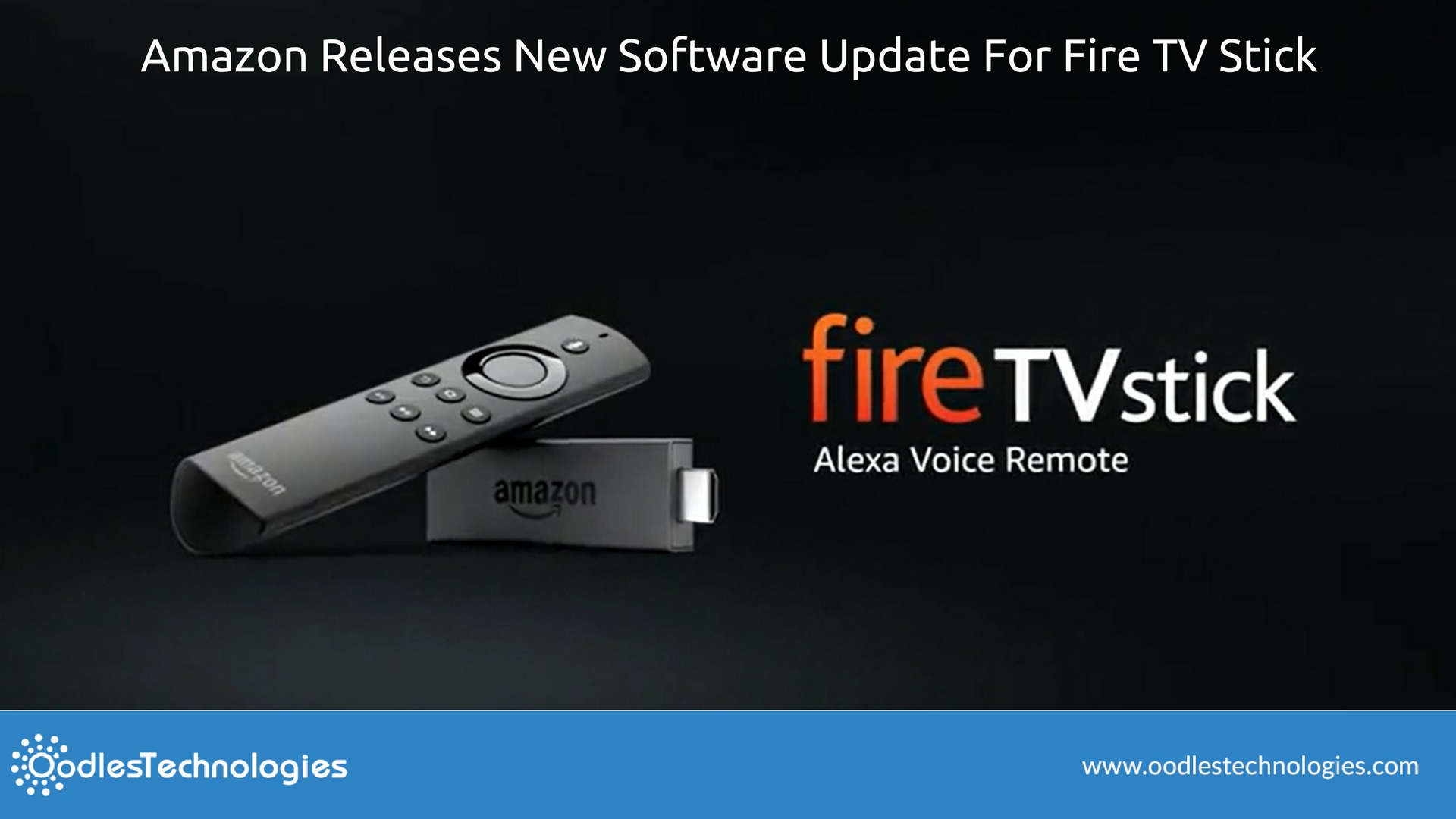
The second generation Fire TV Stick brought to you by Amazon has just received a new software update. The new Fire TV OS version 5.2.4.2 has already marked its debut on second generation Fire TV streaming media players. However, the Fire TV streaming stick was kept devoid of this update for a while. Finally, Amazon has started rolling out Fire TV OS 5.2.4.2 for all the streaming sticks as well.
So, now there are two software versions available for all the Fire TV devices. The 1st generation Amazon Fire TV streaming media player and streaming stick are both running on OS 5.2.4.1 while their second generation counterparts now also support OS 5.2.4.2.
Your may also like How To Mirror your iPhone or iPad to Amazon Fire TV.
.
New Features And Enhancements
As it turns out, there’s not much to get excited about this new update and both 5.2.4.2 and 5.2.4.1 are pretty much the same. But of course, there are several enhancements and notable changes that you’d hardly ever notice. First off, there’s a data monitoring tool that will display the internet data usage of your device. You can now set data alerts and see the weekly or monthly data usage of different apps and channels. You can also choose a preferred video quality for streaming online media content depending on your internet speed.
Also, a PIN Protect option has been added to the Prime Photos app to help protect your precious memories. You will find this option in Fire TV parental control preferences. Once you have enabled this Setting, you are prompted to enter the security PIN each time you open the Prime Photos app. This will restrain access to the app and will PIN protect all your photos and videos stored on Amazon Drive.
How To Install?
Before starting to install, make sure you are using the second generation Fire TV Stick as it won’t work with the older devices. Also, if an update is available for your device, it will automatically notify you and then you can start to download it. But if that doesn’t happen, you can check for the update manually by following these simple steps.
-
Using the Fire TV remote, go to Settings > Device > About from the menu.
-
Go to Software Version to see the existing software version running on your Fire TV stick.
-
Select Check for System Update see if an update is available for your device.
If there happens to be an update for your device, it will start downloading automatically. After the download is complete, select Install System Update to instantly start the installation. Elsewise, the installation will start automatically after you restart your device or it is kept idle for 30 minutes.


Cookies are important to the proper functioning of a site. To improve your experience, we use cookies to remember log-in details and provide secure log-in, collect statistics to optimize site functionality, and deliver content tailored to your interests. Click Agree and Proceed to accept cookies and go directly to the site or click on View Cookie Settings to see detailed descriptions of the types of cookies and choose whether to accept certain cookies while on the site.















About Author
Anirudh Bhardwaj
Anirudh is a Content Strategist and Marketing Specialist who possess strong analytical skills and problem solving capabilities to tackle complex project tasks. Having considerable experience in the technology industry, he produces and proofreads insightful content on next-gen technologies like AI, blockchain, ERP, big data, IoT, and immersive AR/VR technologies. In addition to formulating content strategies for successful project execution, he has got ample experience in handling WordPress/PHP-based projects (delivering from scratch with UI/UX design, content, SEO, and quality assurance). Anirudh is proficient at using popular website tools like GTmetrix, Pagespeed Insights, ahrefs, GA3/GA4, Google Search Console, ChatGPT, Jira, Trello, Postman (API testing), and many more. Talking about the professional experience, he has worked on a range of projects including Wethio Blockchain, BlocEdu, NowCast, IT Savanna, Canine Concepts UK, and more.