4 Tips to Get More Out of Your Amazon Echo
Posted By : Vidushi Vij | 26-Dec-2017
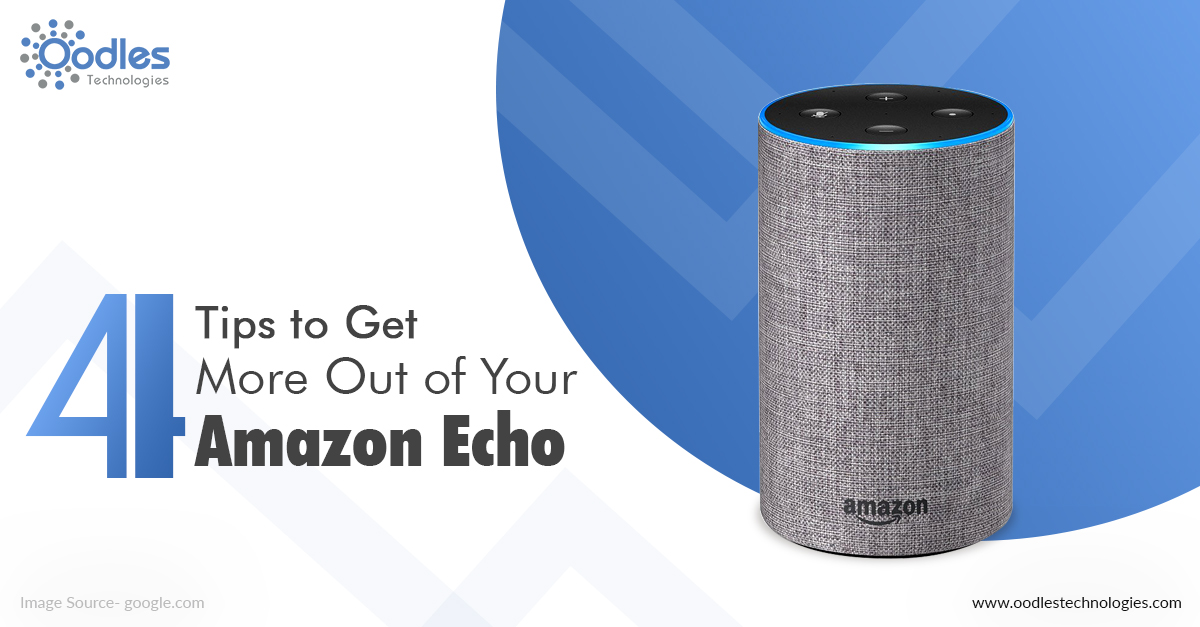
The list of smart home devices is growing day by day. Alexa is one of them and is taking the whole world by storm. It has recently launched Amazon Echo which is full of helpful features. It is a powerful gadget at a pocket-friendly price. Here are few things you must try if you own one.
1. Training is a must
The most important part of using Amazon Echo is training so that it could understand your pronunciation and words easily. Recently the company has added another feature called voice recognition and multi-user support which lets multi-users to interact with the device. To train your device to follow few simple steps:
- Go to settings
- Select the Accounts and then click on "voice training."
- You will then have to read about 25 phrases
And within two minutes the voice profile setup process will be done. Yes, it is that simple. After 20 minutes you can easily talk to Alexa.
2. Alexa what did you say??
There is one command with which people are unaware but it is definitely useful for every Alexa user out there. Did you know, you could ask your Alexa to repeat the phrase it just said? All you have to do is simply ask Alexa what did you say? Isn't that amazing? Go ahead and use it whenever needed.
3. A quick reminder
Alexa can be your reminder too. You have to command your Alexa like “ Alexa, remind me to go to market tomorrow at 5 pm.” Alexa will remind you at the exact same time. That means, now you don't have to worry about anything. You can leave everything on your Alexa. You can go through the reminders in the Alexa app.
Also Read: Everything You Need To Know About Amazon Echo Spot
4. Ask Alexa to play music on Spotify
Alexa can play music for you. By default, the music will play from Amazon Music, or Amazon My Music but can work with Spotify as well. Just give a command to Alexa, “ Alexa play Spotify”. You can listen to any track or album you want but first, play a song you had left off when last time you were listening to music. Before that you will have to connect with your Spotify account.:
- Go to settings from the Menu
- Click Music & Media from the Accounts option
- Find Customize my music service preferences
- Select the default music services
- Click the Spotify option


Cookies are important to the proper functioning of a site. To improve your experience, we use cookies to remember log-in details and provide secure log-in, collect statistics to optimize site functionality, and deliver content tailored to your interests. Click Agree and Proceed to accept cookies and go directly to the site or click on View Cookie Settings to see detailed descriptions of the types of cookies and choose whether to accept certain cookies while on the site.















About Author
Vidushi Vij
Vidushi is a digital marketing professional. She work on SEO, SME, SMO, Content writing. She like listening to music and exploring new places.