Using Jasper Reports Part 5 (Adding dynamic path to images in jasper)
Posted By : Nagesh Chauhaan | 08-Nov-2012
Welcome to the Part 5 of Using Jasper Reports Series. In previous article we went through How to Create a sub report and pass parameters to it. In this article, let us know How to Insert Images and adding dynamic path to them in jasper.
How to insert Images In jasper
Adding Images to the Report is as simple as to add other elements . Here I am going to tell you the simplest and effective way of adding images to an iReport .
Just go to the Pallete section of the designer and select , Image component from there to use in your report , as shown in the picture below :

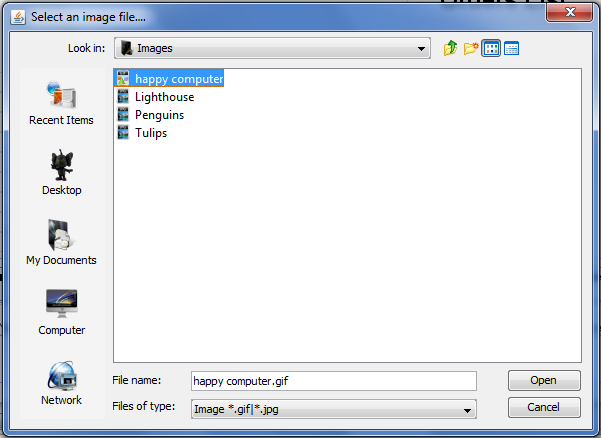
Now a Select Window w’ll open , just select the image location and Open the image as shown in the picture :
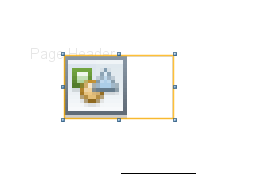
Your w’ll get an image icon on the Designer , like this :
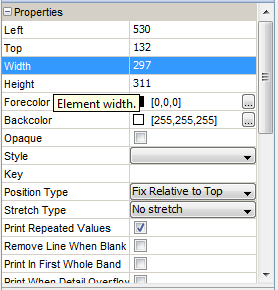
Now to adjust Height and Width and other properties of the image go to Properties Section of Designer and adjust them accordingly :
Now you are all set with adding an image to the Report , run the report and you w’ll get the desired output like this :

Here we are done with Adding an Image to the Report , lets learn how to assign dynamic path to it .
Adding dynamic path to images in jasper
To see the path of your image go to Properties and Select Image Expression as shown in the figure below :
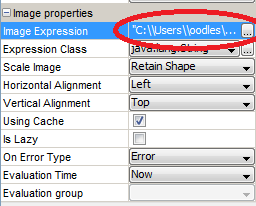
Now click on the portion that is highlited by a red circle, an Image Expression window w’ll open like this :
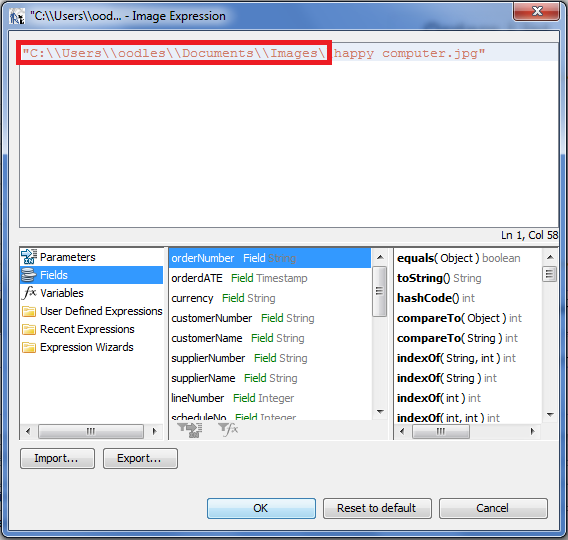
As you can see in the image , the portion that is covered with a Red Box is Hard Coded to your local machine , but whenever you are going to deploy the application on live server this Hardcoded Path w’ll be unable to locate the image :
Therefore this is a good practice ro provide an Dynamic path for your picture , this can be done by a number of ways , here I am going to provide dynamic path with a parameter .
Lets assume we have an parameter named realPath and it holds the Context Path value for your application , now this value can be used in place of hardcoded path , like this :
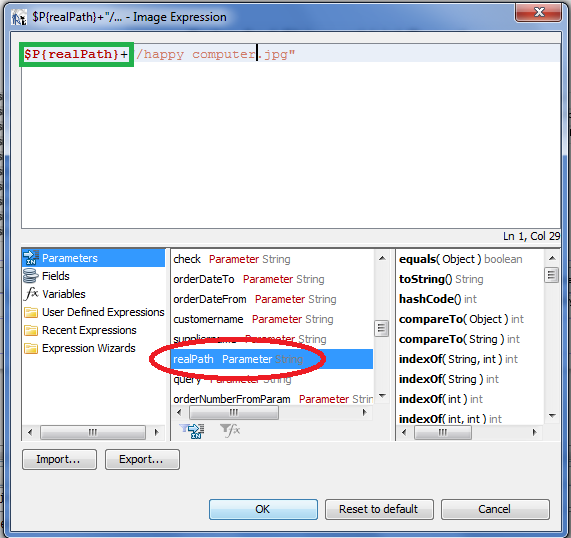
Here we are done with adding an dynamic path for our Image , now the realPath parameter don’t holds an hard coded value of your machine . Now we are free to deploy the application everywhere , realPath parameter w’ll adjust itself accordingly and the image w’ll get the right path every time.
In grails context path can be passed from Controller to Jasper Reports like this :
def realPath = servletContext.getRealPath("/reports/images/")
params.realPath=realPath
For more info about Using Jasper Report in Grails click Here.
Here we are done with Passing a Relative path to Images in Jasper . In next part we w'll cover Creating jasper reports in Grails.
Hope it helps !
Nagesh Chauhan


Cookies are important to the proper functioning of a site. To improve your experience, we use cookies to remember log-in details and provide secure log-in, collect statistics to optimize site functionality, and deliver content tailored to your interests. Click Agree and Proceed to accept cookies and go directly to the site or click on View Cookie Settings to see detailed descriptions of the types of cookies and choose whether to accept certain cookies while on the site.















About Author
Nagesh Chauhaan