Performance optimizations for Android apps built using Titanium
Posted By : Anuj Khurana | 03-Jul-2012
DDMS
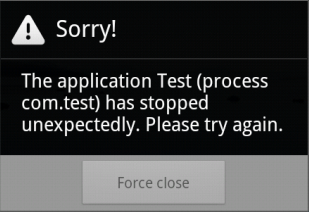
While running your Android app, the app suddenly freeze and there’s a dialog box asking you to FORCE CLOSE the app. This is what happen when your Android app has RUNTIME ERROR!
To solve this issue there’s a tool available - DDMS
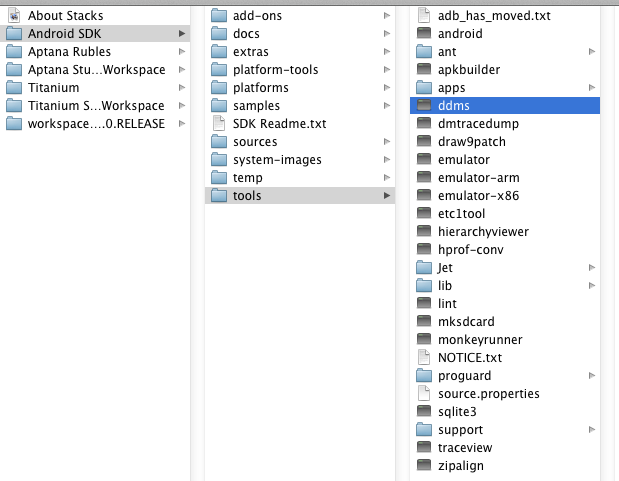
Go to the Android SDK folder open Tools and select DDMS
As part of the compile process the deployment in the emulator, the console statements in titanium are quite lengthy and in details. This is very hard to find the debug statements. DDMS provides the solution for this.
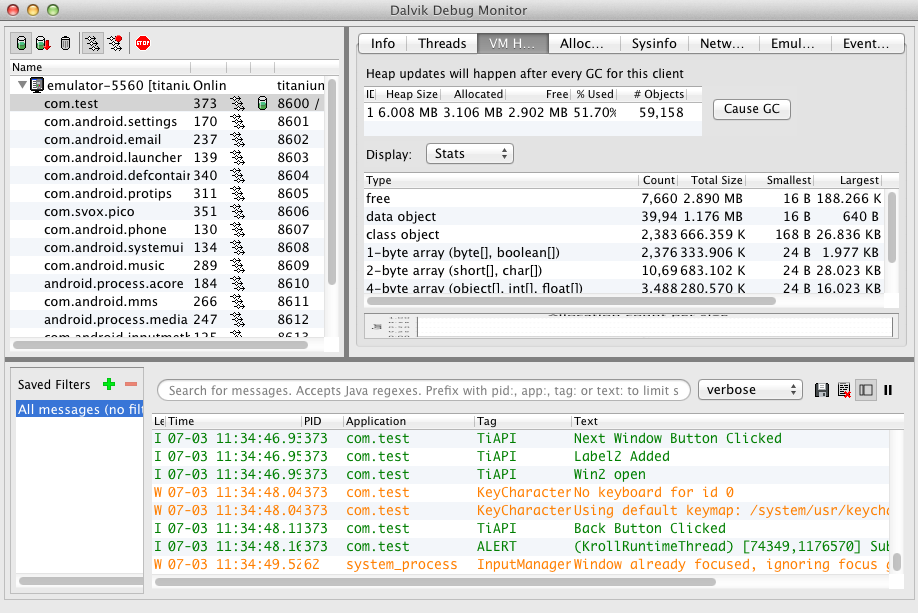
In the left panel there is an emulator process. All the application which is installed in emulator is in left panel. You can choose which device you’d like to debug. In my case I have my emulator and the com.test is the application. The LogCat is the place you could see warnings and errors messages from the device.
Using DDMS
The following sections describe how to use DDMS and the various tabs and panes that are part of the DDMS GUI.
Viewing heap usage for a process
DDMS allows you to view how much heap memory a process is using. This information is useful in tracking heap usage at a certain point of time during the execution of your application.
To view heap usage for a process:
- In the Devices tab, select the process that you want to see the heap information for.
- Click the Update Heap button to enable heap information for the process.
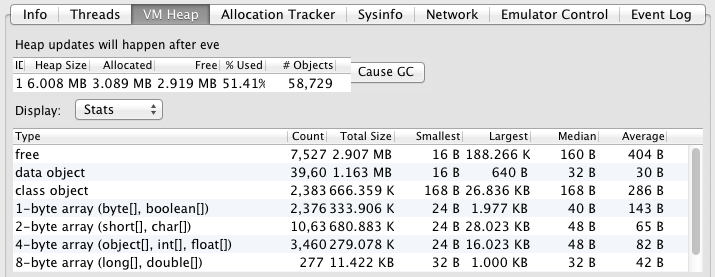
- In the Heap tab, click Cause GC to invoke garbage collection, which enables the collection of heap data. When the operation completes, you will see a group of object types and the memory that has been allocated for each type. You can click Cause GC
Working with an emulator or device's file system
DDMS provides a File Explorer tab that allows you to view, copy, and delete files on the device. This feature is useful in examining files that are created by your application or if you want to transfer files to and from the device.
To work with an emulator or device's file system:
- In the Devices tab, select the emulator that you want to view the file system for.
- To copy a file from the device, locate the file in the File Explorer and click the Pull file button.
- To copy a file to the device, click the Push file button on the File Explorer tab.

Tracking memory allocation of objects
DDMS provides a feature to track objects that are being allocated to memory and to see which classes and threads are allocating the objects. This allows you to track, in real time, where objects are being allocated when you perform certain actions in your application. This information is valuable for assessing memory usage that can affect application performance.
To track memory allocation of objects:
- In the Devices tab, select the process that you want to enable allocation tracking for.
- In the Allocation Tracker tab, click the Start Tracking button to begin allocation tracking. At this point, anything you do in your application will be tracked.
- Click Get Allocations to see a list of objects that have been allocated since you clicked on the Start Tracking button. You can click on Get Allocations again to append to the list new objects that that have been allocated.
- To stop tracking or to clear the data and start over, click the Stop Tracking button.
-
Click on a specific row in the list to see more detailed information such as the method and line number of the code that allocated the object.
Avoid Multiple Window open at a time
In android when user click on the back button, the previous screen is visible but the current screen is also open in background which speeds down the app. We need to close the current window on back button click. We need to override the back button click event for this.
Here is the example to override the back button click event:
var win = Titanium.UI.createWindow({
    title:'Window 1',
    backgroundColor:'#fff',
    layout:"vertical"
});

var label1 = Titanium.UI.createLabel({
	top: 50,
	color:'#999',
	text:'I am Window 1',
	font:{fontSize:20,fontFamily:'Helvetica Neue'},
	textAlign:'center',
	width:'auto'
});


// Create a Button.
var buttonNext = Ti.UI.createButton({
	title : 'New Window',
	height : '47dp',
	width : '90%',
	top : 20,
});

// Listen for click events.
buttonNext.addEventListener('click', function() {
	Ti.API.info("Next Window Button Clicked");
	var win2 = Titanium.UI.createWindow({
    title:'Window 2',
    backgroundColor:'#fff',
    layout:"vertical"
});
win2.addEventListener('android:back', function(e) {
	Ti.API.info("Back Button Clicked");
    win2.close();
    alert("Sub Window Closed");
    });
 var label2 = Titanium.UI.createLabel({
	top: 50,
	color:'#999',
	text:'I am Window 2',
	font:{fontSize:20,fontFamily:'Helvetica Neue'},
	textAlign:'center',
	width:'auto'
});

 win2.add(label2);
 Ti.API.info("Label2 Added");
  win2.open();
  Ti.API.info("Win2 open");
});
In the above example we created an eventListener on win2. When we press the back button, the previous screen is visible to the user and the current screen will be closed.
win2.addEventListener('android:back', function(e) {
	Ti.API.info("Back Button Clicked");
    win2.close();
    alert("Sub Window Closed");
    });
Hope it helps !
Anuj Khurana


Cookies are important to the proper functioning of a site. To improve your experience, we use cookies to remember log-in details and provide secure log-in, collect statistics to optimize site functionality, and deliver content tailored to your interests. Click Agree and Proceed to accept cookies and go directly to the site or click on View Cookie Settings to see detailed descriptions of the types of cookies and choose whether to accept certain cookies while on the site.















About Author
Anuj Khurana
Anuj is a passionate technology enthusiast with a wealth of industry experience.His expertise in areas such as Blockchain Solutions, Fin-tech Application Development, White Label solutions, and Cryptocurrency development positions him as a valuable asset in organization. With his strong interest and experience in Blockchain Solutions, He contribute to the development and implementation of innovative solutions leveraging blockchain technology which include developing smart contracts, decentralized applications ,or exploring the potential of blockchain in various industries like finance, supply chain, healthcare, and more. Moreover, his proficiency in Fin-tech Application Development showcases his understanding of the intersection between technology and financial services and his experience with White Label solutions he is familier with creating customizable and rebrandable software products that can be tailored to meet specific client needs. Overall, Anuj's diverse skill set and industry experience make him well-equipped to contribute to organization's technology initiatives, driving innovation and helping to stay at the forefront of the rapidly evolving Blockchain technology landscape and allowing organization to tap into the growing crypto market.